How to switch garage management software
Updated 11 November 2026
Switching garage management software takes four jobs: getting your customer and vehicle records out of the old system as a spreadsheet (CSV) file, cleaning that file, importing it, and setting up services, staff and your booking page before a switch-over day. The file takes the most care, so most of this guide is about it.
The steps name the columns and settings of Motion Bookings, our own garage management software, but the checks apply to any system. You can try the import with your own customer file on the 14-day free trial before you give notice anywhere.
1. Check your contract and ask for your data
Read your current terms for the minimum term, the notice you must give and what happens to your data when the account closes. Ask for an export of your customers and vehicles, with MOT due dates, while you still have full access.
The table shows what each provider's own website said on 10 November 2026; your contract may differ, so check it. Moving from one of these? Our pages on Garage Hive, TechMan, MAM Autowork Online and Motasoft compare it with Motion Bookings, and our comparison of the best garage management software in the UK sets six systems side by side.
| System | Contract and notice | Your data when you leave |
|---|---|---|
| Garage Hive | One-month rolling; after the first month you can end it any time by signing a cancellation form (terms) | Kept for 3 months after the account ends (terms) |
| MAM Autowork Online | 12-month minimum, then 3 months' notice (FAQ) | Sent to you as CSV on an encrypted device (FAQ); their 2016 terms add a one-off data processing fee, amount on application (terms) |
| TechMan | Partner Plan: a minimum term, length not stated. Flexi Plan: 30-day rolling, with an upfront setup cost (pricing) | Not stated on their site |
| Motasoft | Pricing page: no fixed-term contract (pricing). Full terms: minimum term set in your order, at least 90 days' written notice before a term ends (terms) | Made available for migration when the contract ends; may be deleted 90 days later (terms) |
| MOT Manager | No length, minimum term or notice period stated (terms page) | Not stated on their site |
| Motion Bookings | Monthly plans have no minimum term; a yearly plan is paid for the year ahead. You cancel yourself in Settings: cancelling stops the next renewal, you keep the plan to the end of the period you paid for, and what you paid is not refunded (Terms, section 3) | The owner exports customers, vehicles, bookings, invoices and the text log as CSV files in one zip file, from Settings, while the plan is active |
Facts about other systems come from each company's own website, checked on 10 November 2026; follow the links for their wording. Terms change, so read the current version, and your own contract, before you act.
2. Decide who does the import
Some providers move your data in for you. MAM's implementation team can usually move customer, vehicle and work history records (FAQ), TechMan's team moves customers, vehicles, invoices, service reminders and stock (pricing), Motasoft imports usable data free at set-up (vehicle history page) and MOT Manager lists data import as free (features). Garage Hive's terms list data migration as a one-off cost (terms). If you want it done for you, that counts in their favour.
In Motion Bookings the import is self-serve, on the Customers page or in the set-up wizard. It brings in customers, one vehicle each and MOT due dates, not past bookings, invoices or job history, so keep your old export and invoice PDFs for your records.
3. Clean the file
Open the export in Excel or Google Sheets and check these before saving it as CSV:
- One customer per row, with column names in the first row, in any order.
- A name on every row, plus a phone number or an email. Rows without them are left out.
- One vehicle per row: a second row with the same phone number or registration is skipped as a duplicate, so add extra cars to the record later.
- MOT due dates as 30/09/2026, 30/09/26 or 2026-09-30, with no time after them. A date the importer cannot read is left blank, so no reminder.
- No line breaks inside a cell (old notes often carry them): the importer reads each line as a customer.
- Commas between the columns. A file with semicolons or tabs needs saving again as CSV (comma delimited).
- Everyone comes in as a private customer with no address; change trade and business customers afterwards.
4. Match the columns
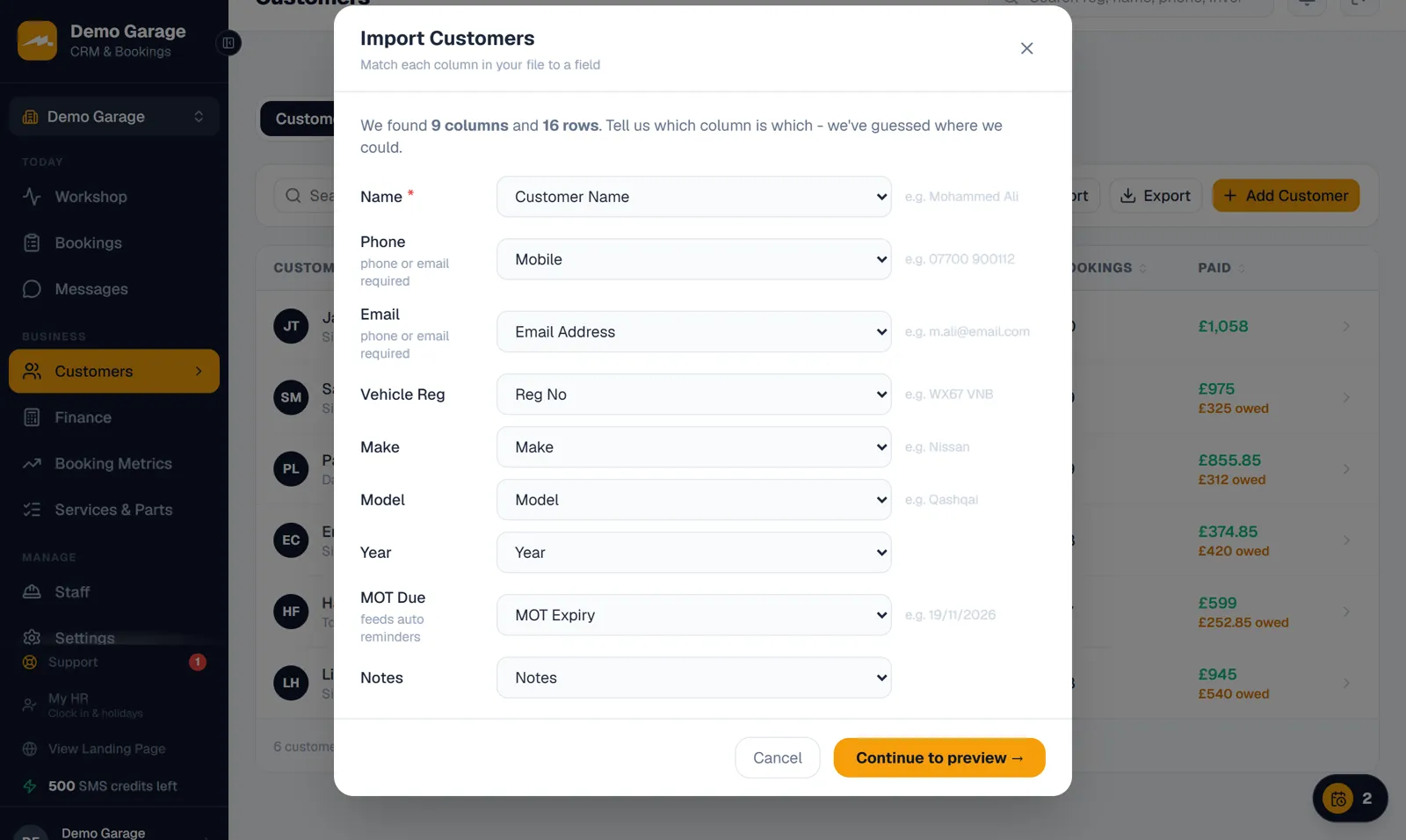
The import screen's blank template has the nine columns Motion Bookings takes: Name, Email, Phone, Vehicle Reg, Make, Model, Year, MOT Due and Notes. Your own column names can stay: the importer matches them from the header ("Mobile" or "Tel" for "Phone", "VRN" for "Vehicle Reg", "MOT Expiry" for "MOT Due"), shows an example from your first row, and lets you change any match. The done screen says how many customers came in, how many duplicates were skipped and how many MOT reminders were set up; those reminders send by themselves only on Pro and Pro+ (step 5).
5. Let MOT due dates become reminders
Each row with a readable "MOT Due" date also gets an MOT record, noted as imported from your previous system: that record is what MOT reminders are sent from.
Reminders are texts, on Pro and Pro+. Switch on "Auto MOT reminders" and pick how many days before the expiry they go (1 to 120, 30 by default); each MOT expiry is reminded once, and a date already past gets no reminder. On the free trial they wait for you to send them by hand. The imported date covers the next MOT, and when the car passes it with you, the pass stores its next expiry, worked out from the imported date by GOV.UK's rule, and the following year's reminder is set up from it. More on MOT reminder software.
6. Set up services, prices and staff
On the Services and Pricing page, give each service a price and a time. Any plan can price the MOT by class, set prices by make and model and choose what customers can book online; MOT test fees always go on the bill VAT-exempt.
Each person then gets their own login at no extra cost: manager, mechanic (a simpler workshop screen) or the pages you choose. Mechanics sign in from "Staff Login" on the homepage. Rota, holidays and clock-in are on every plan; wages from clock-ins are Pro+. The owner can add a workshop tablet as a shared device, where staff tap their name.
7. Share your booking page and connect payments
Your booking page takes bookings once you have one service. Settings > Bookings shows its link: put it behind a "Book online" button on your website, on your Google Business Profile and in your texts. The set-up wizard also gives a one-line code to show the page inside your website; that frame does not grow to fit the form, which scrolls inside it.
Online bookings arrive as requests marked "Unconfirmed" for you to confirm, and limits on how many jobs or MOTs can share a time stay off until you set them: see how online booking works. To take payment online (a deposit, or the full price of a VAT-free service such as the MOT), the owner connects the garage's own Stripe account in Settings > Payments; the money arrives less card fees (pricing).
8. Run both systems for a short while
Pick a quieter switch-over day. Import your customers a few days before, then copy across the bookings already in the old diary from that day on, because the import does not bring bookings. After that, book every new job in Motion Bookings and keep the old system for look-ups and the jobs already booked there, until they are invoiced and its export is saved. With a long notice period, give notice early enough for it to end after that.
Subscribe before the trial ends and you keep the free days left: the first payment falls when the trial would have ended (unless under 48 hours remain).
9. How you would leave Motion Bookings
The owner can export customers, vehicles, bookings, invoices and the text log as CSV files in one zip file, from Settings > Your data: press "Download my data" on the "Export your data" card. Each file in the zip opens in Excel, with invoice lines and payments as structured text, each in a single column. The export covers the location you are in, so with several locations, export from each one.
The export works while your plan is active and in the 7 read-only days after a free trial. A plan that has ended is locked with no export button, so export first. You cancel in Settings > Plan & Billing ("Cancel subscription"; the last step is on Stripe's billing page), with no exit fee, and your texting number is kept for 21 days, then released. Monthly plans have no minimum term; a yearly plan is paid for the year ahead. Cancelling stops the next renewal: you keep the plan to the end of the period you paid for, and what you paid is not refunded (Terms of Service, section 3).
Frequently asked questions
Can I import my customers from my old garage software?
Yes, from a CSV file or a spreadsheet saved as one. It takes name, email, phone, reg, make, model, year, MOT due date and notes, and each row needs a name plus a phone number or email.
Will my customers' MOT reminders carry on after I switch?
Yes for each imported MOT due date, if you are on Pro or Pro+ and switch MOT reminders on: each date becomes an MOT record, and a text goes out inside your chosen window. When the car passes its next MOT with you, the pass stores its next expiry, worked out from the imported date by GOV.UK's rule, and next year's reminder is set up from it. The free trial does not send them by itself.
Does the import bring across past invoices and job history?
No, only customers, one vehicle each and MOT due dates, so keep your old system's export and invoice PDFs.
Will someone do the import for me?
The import is self-serve: you upload the file and check the column matches yourself. If you get stuck, owners and managers can ask in the Support chat inside the app, or you can email maciejmymotion@gmail.com; there is no phone line.
How do I get my data out if I leave Motion Bookings?
The owner can export customers, vehicles, bookings, invoices and the text log as CSV files in one zip file, from Settings. Do it before your plan ends, as a locked account has no export button.
Can I try Motion Bookings with my own customers before I give notice?
Yes. The 14-day free trial needs no card and has every Pro+ feature, so you can import your real customer file. Texts are limited to 50, from a shared number, with no automatic reminders.
Keep reading
Try the import with your own customer file
Start a 14-day free trial with every Pro+ feature. No card needed, and nothing is billed unless you choose a plan.
Start your 14-day free trial